Paramount Tech Solution logo

How to Change the Administrator on Windows 10

Paramount Tech Solution

How to Change Administrator on Windows 10

Table of Contents

Want to hand over the admin task to someone else or adjust the permissions? Sometimes a new person needs full control of the system, such as when a family member, student, or employee starts the PC regularly.

Windows 10 allows you to switch administrator rights in just a few clicks, which helps you to use a single device by multiple users with confidentiality. You can do it by alternative methods, such as from the settings, control panel, or command prompt.

This blog provides a complete guide on how to change the administrator on Windows 10 with a step-by-step explanation.

What is an Administrator?

An Administrator or admin is a user on a computer who has full control over the system. This account can install software, change system settings, manage other accounts, and access all files on the device.

The administrator makes the changes that affect how the system works. Admins can add, edit, or remove users, but standard users can only use or access data that administrators allow them to use. Otherwise, a standard user cannot perform any changes until an administrator allows permission.

How to Change the Administrator on Windows 10 

You can change the Administrator Privileges through the settings, control panel, or command prompt. To do this, you must be an administrator to change another user’s privileges. Standard users cannot grant admin rights. Here is the quick guide, step by step;

How to Change the Administrator Through Settings

This is one of the easiest methods for users. Open your settings, click on accounts, then click on family and other users, click on change account type, click on administrator, and your selected user now has administrator rights. Here are the steps 
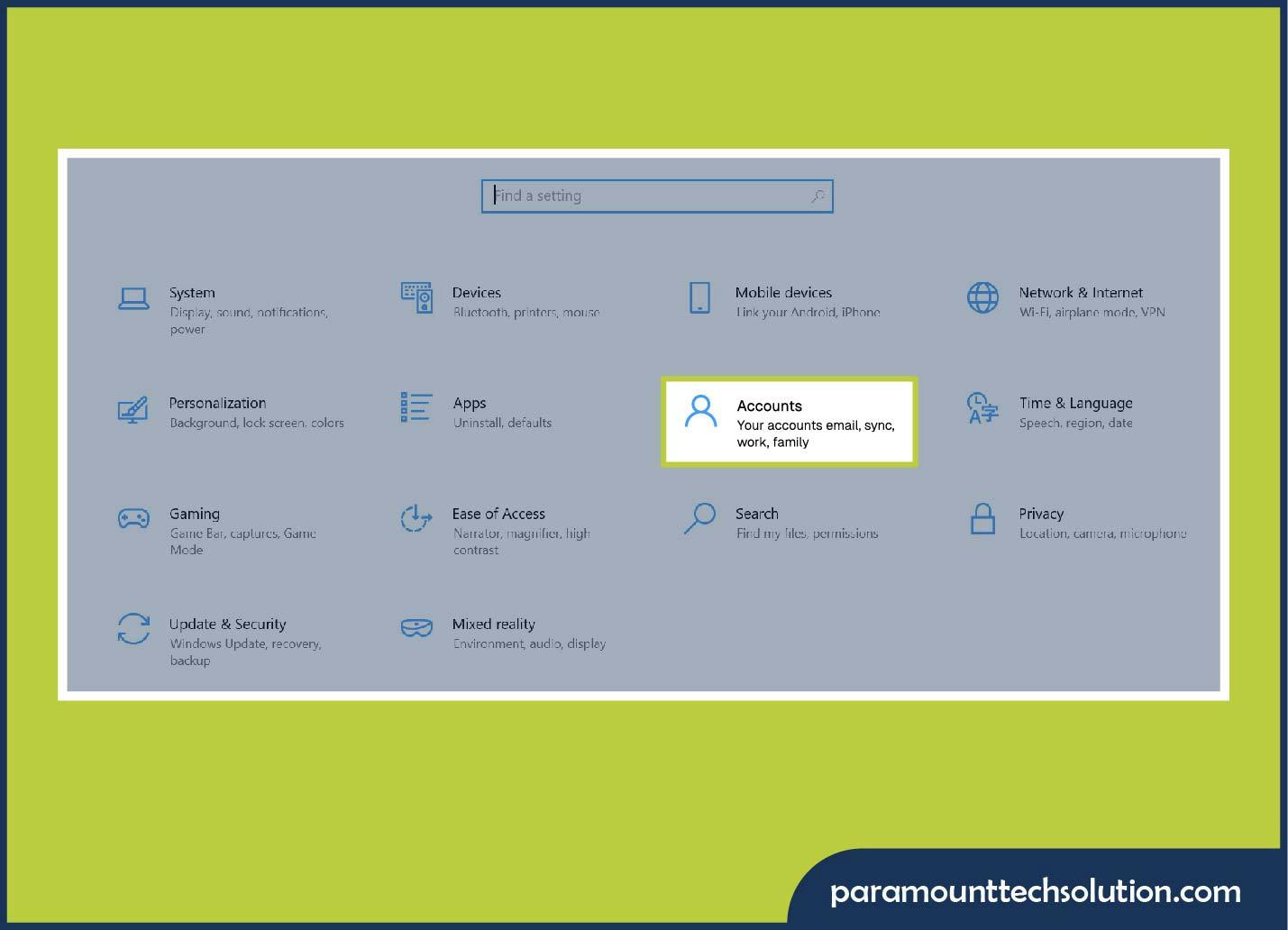
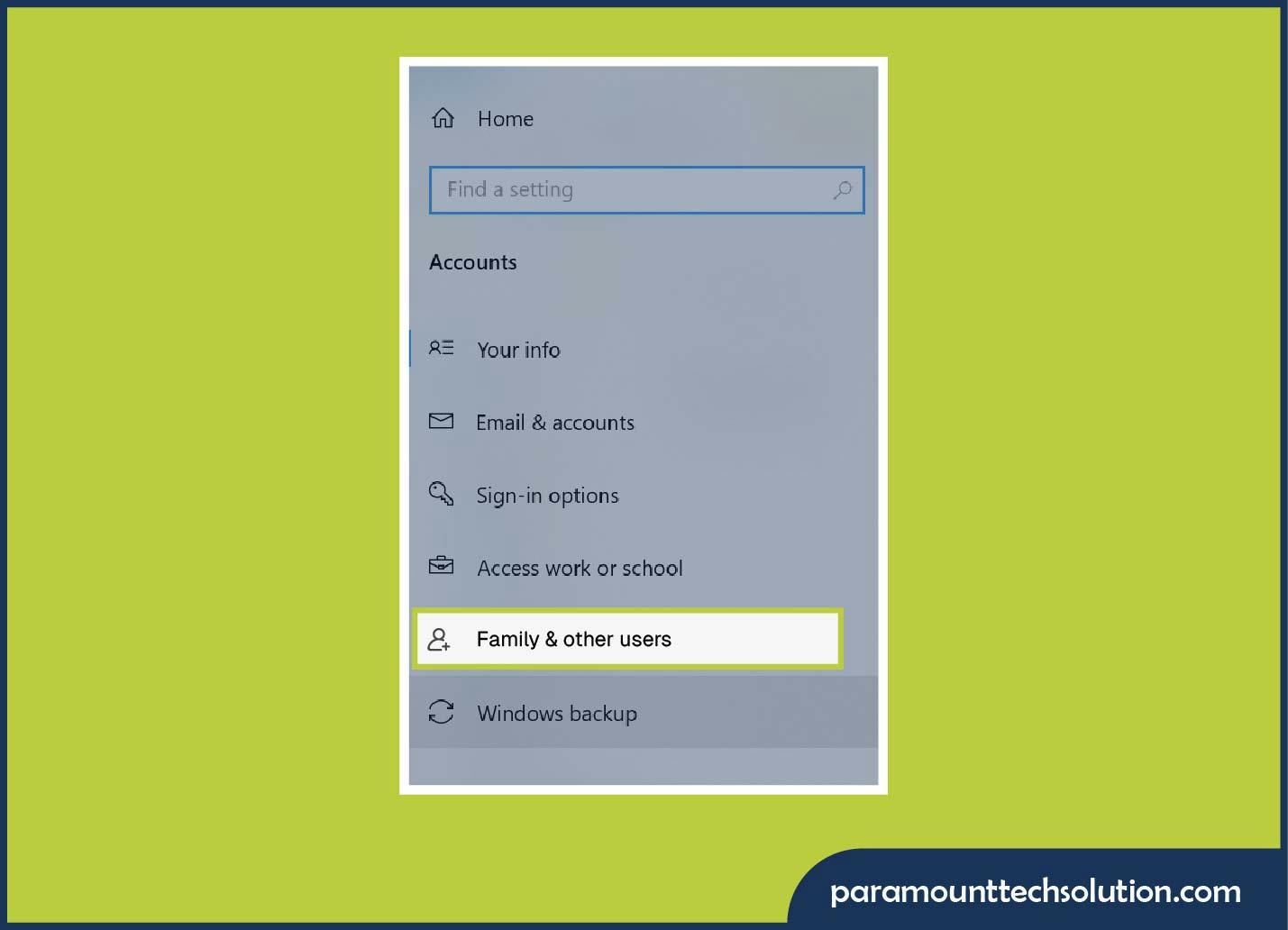
  • Click the Start menu icon. Open settings and click on accounts. 
Change Administrator on Windows 10 in Setting
  • Choose family and other users.
Administrator on Windows 10 in Settings
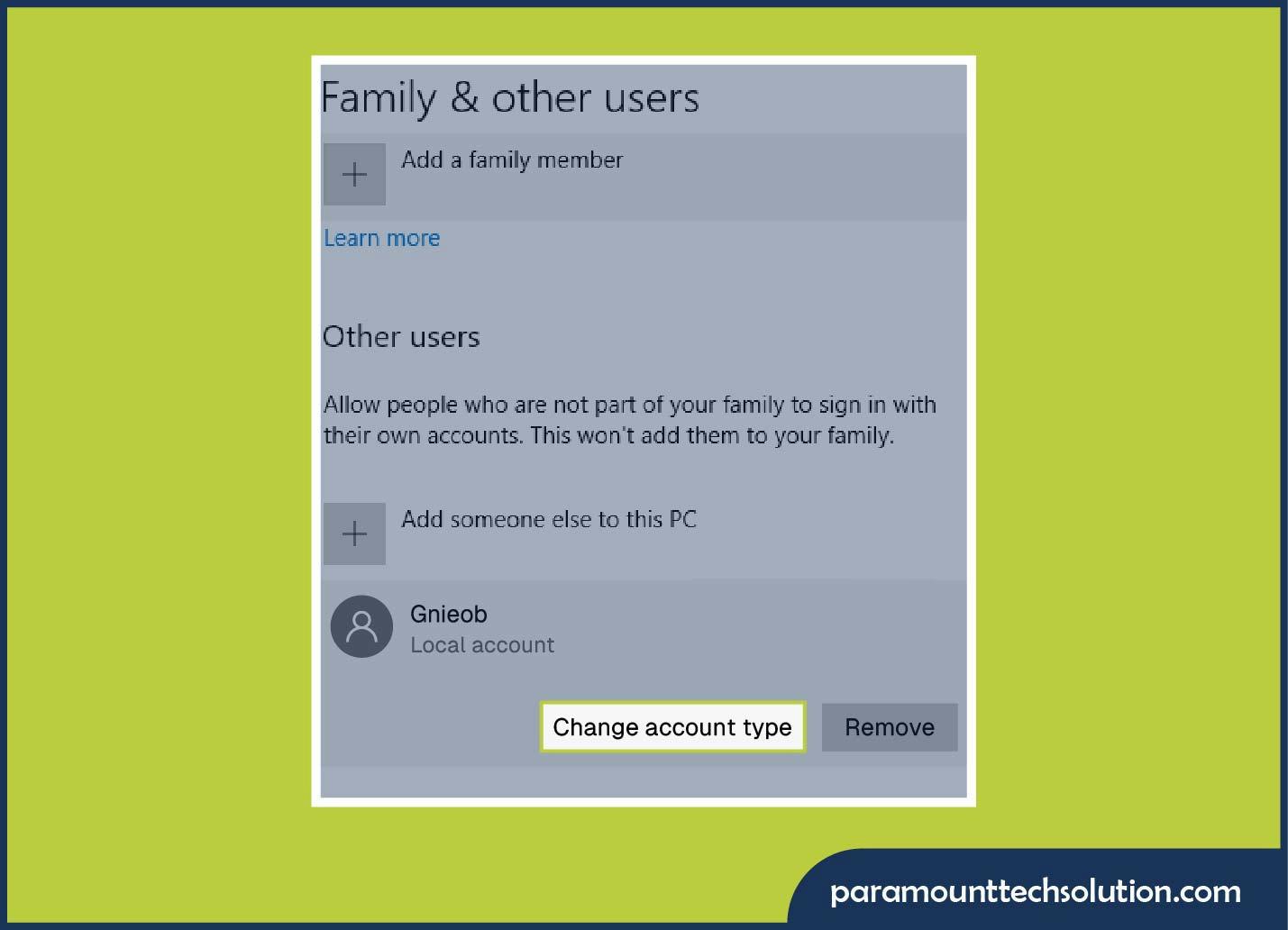
  • Under other users, select the account you want to make an administrator, and click on Change Account Type. 
Administrator on Windows 10 in Settings
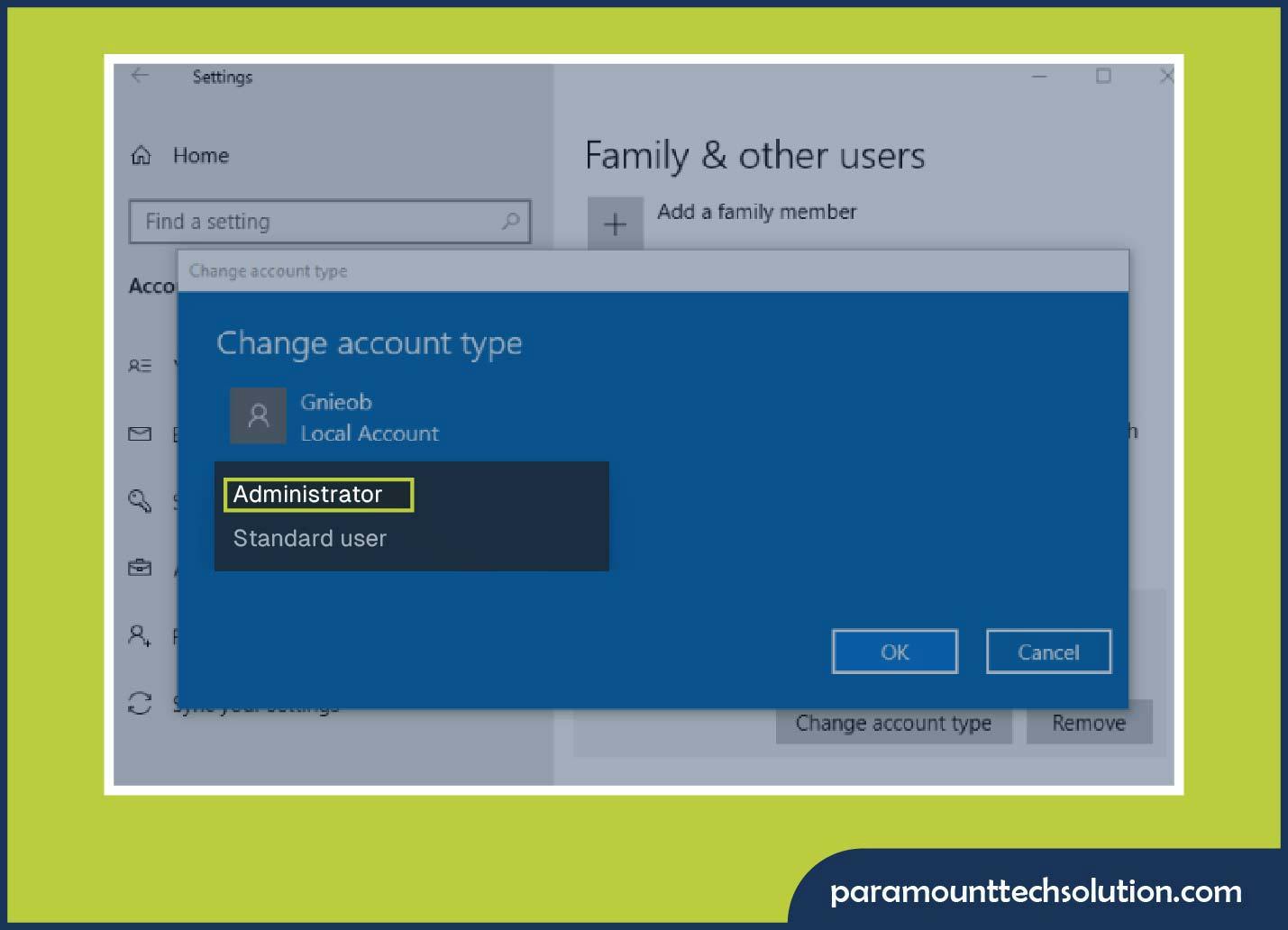
  • In the pop-up, open the drop-down menu Select Administrator. 
How to Change Administrator on Windows 10 in Setting
  • Click ok. The user that you have selected now has administrator rights.

How to Change the Administrator using Control Panel 

Another reliable method of changing administration in Windows 10 is through the control panel, especially for older versions.

Here are the steps;
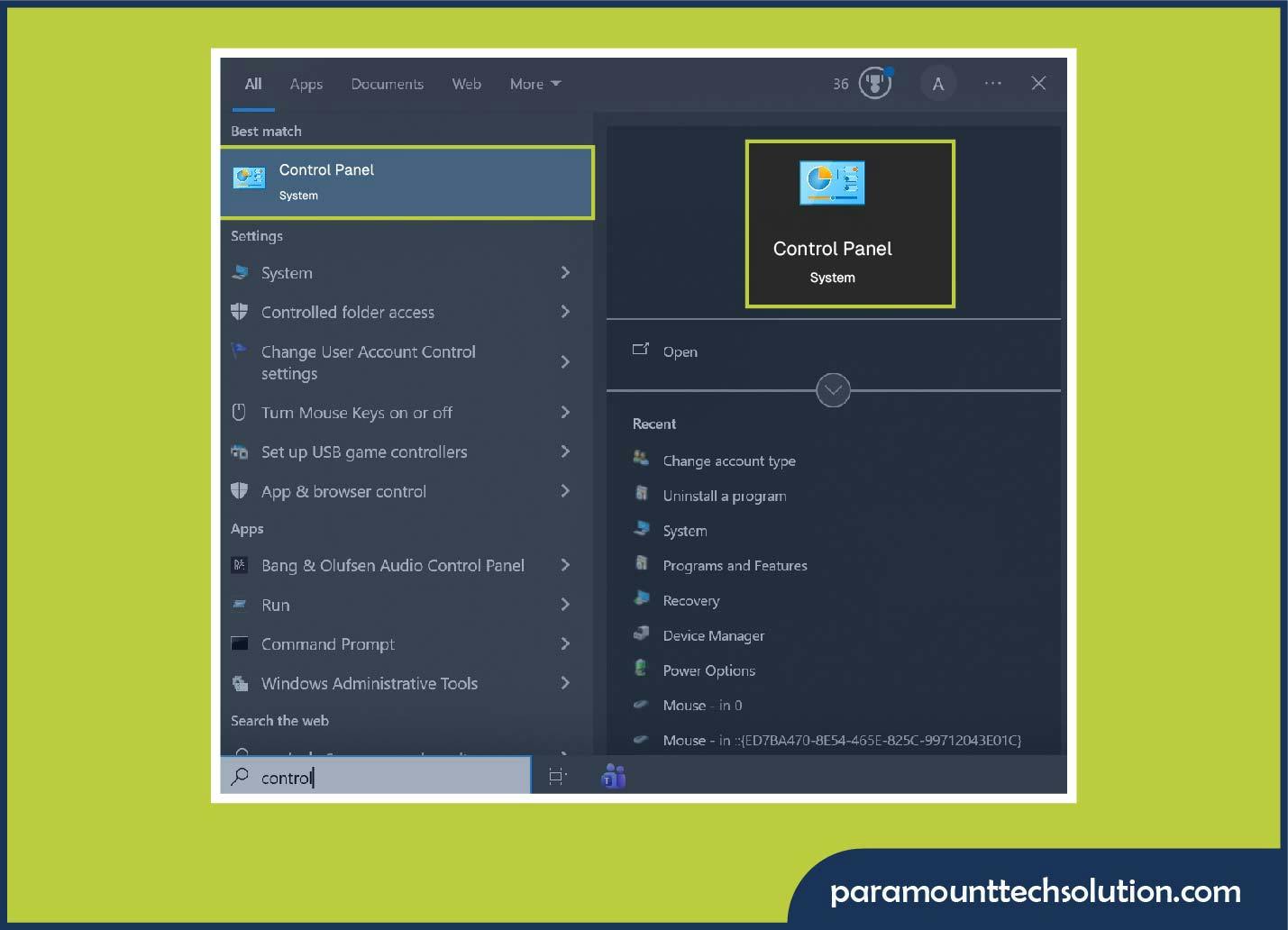
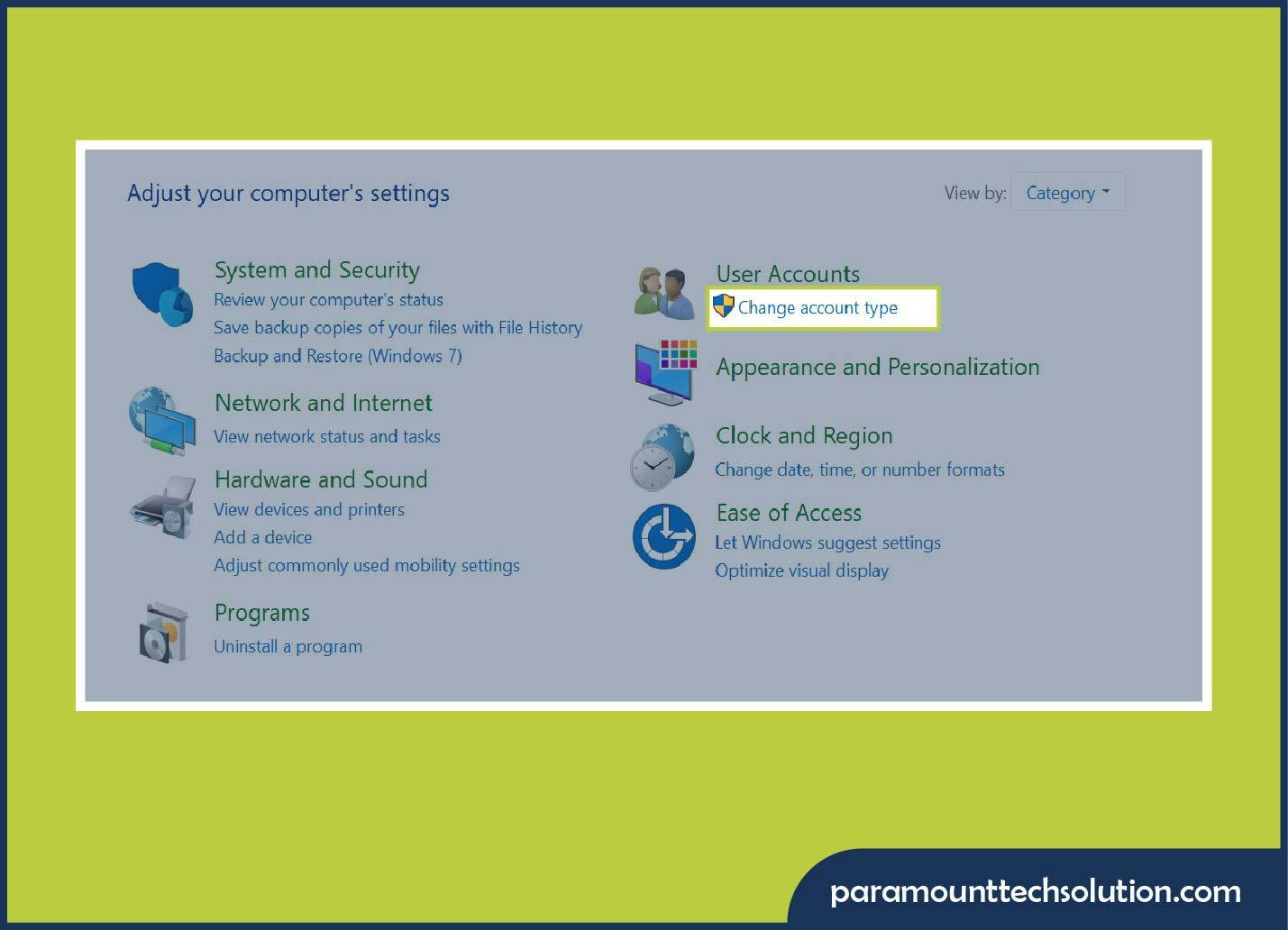
  • Open the Start menu and type Control Panel. Open user accounts.
How to Change Administrator on Windows 10 using Control Panel
  • Next is click on Change account type.
Change Administrator on Windows 10 using Control Panel
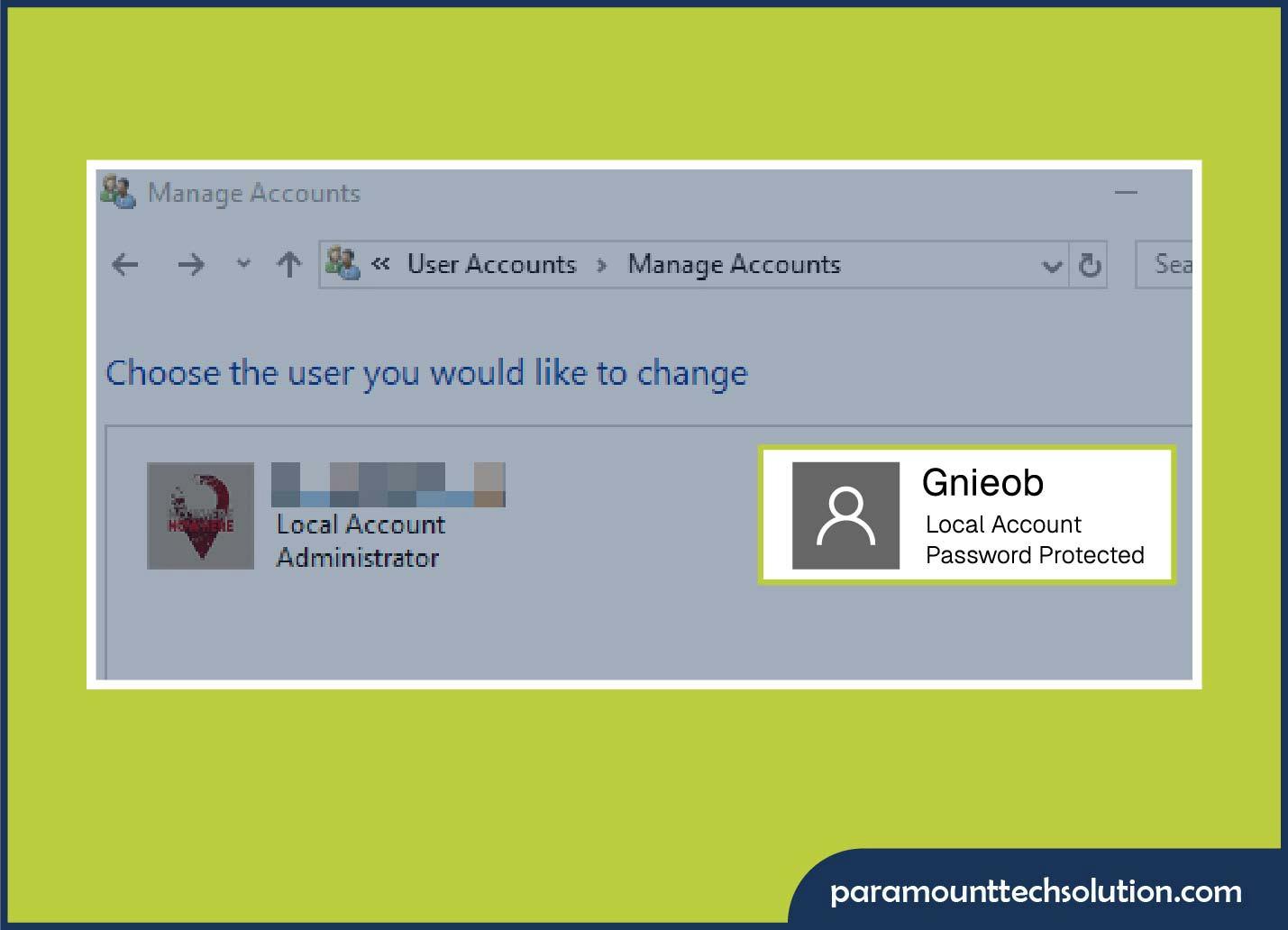
  • Select the user you want to modify.
Change Your Administrator on Windows 10 using Control Panel
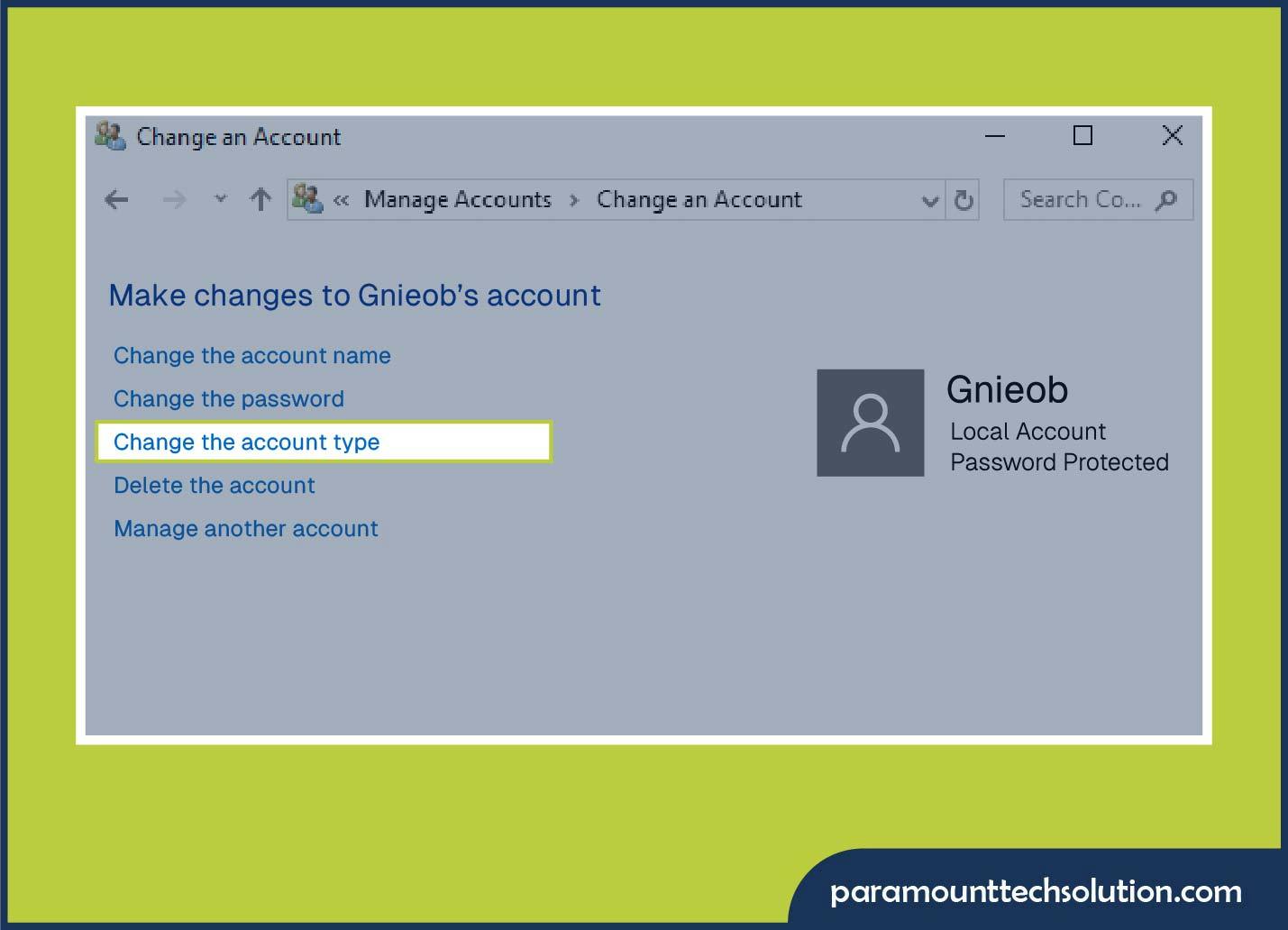
  • Click to change the account type.
Tips to Change Administrator on Windows 10 using Control Panel
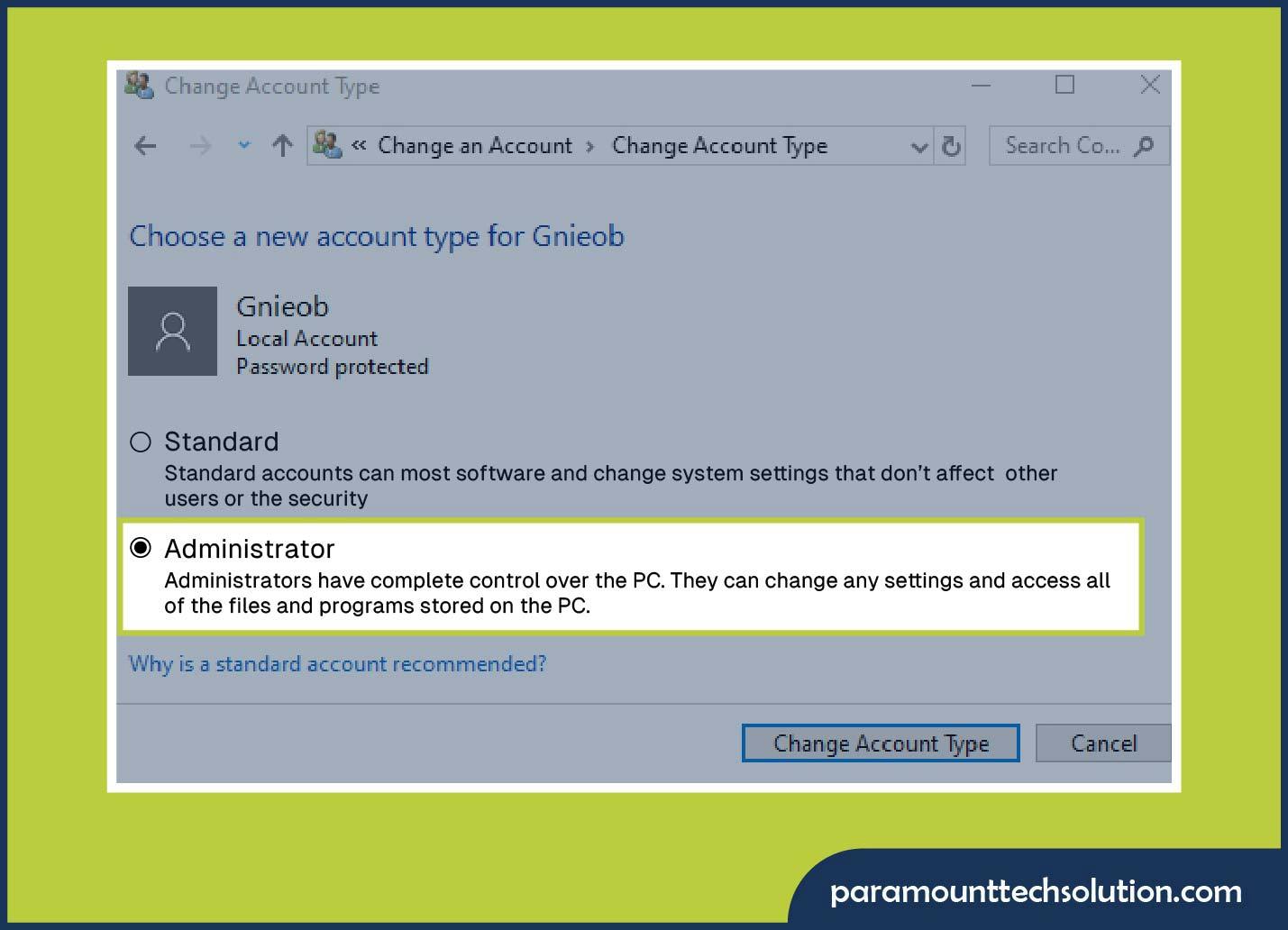
  • Select a standard or administrator account
Changing Administrator on Windows 10 using Control Panel

How to Change Administrator via Command Prompt 

This is useful if your settings are not opening or if you have lost access to the control panel. Then you can change the administrator using the Control Panel. Here are the steps;

  • Search for the command prompt 
  • Right-click it and run as administrator 
  • To make a user administrator type;

             net localgroup administrators “AccountName”/add

  • Press Enter.

 How to Change Administrator using PowerShell 

You can also change the administrator using PowerShell. Here are the steps;

1. Right-click on Start and select Windows PowerShell (admin).
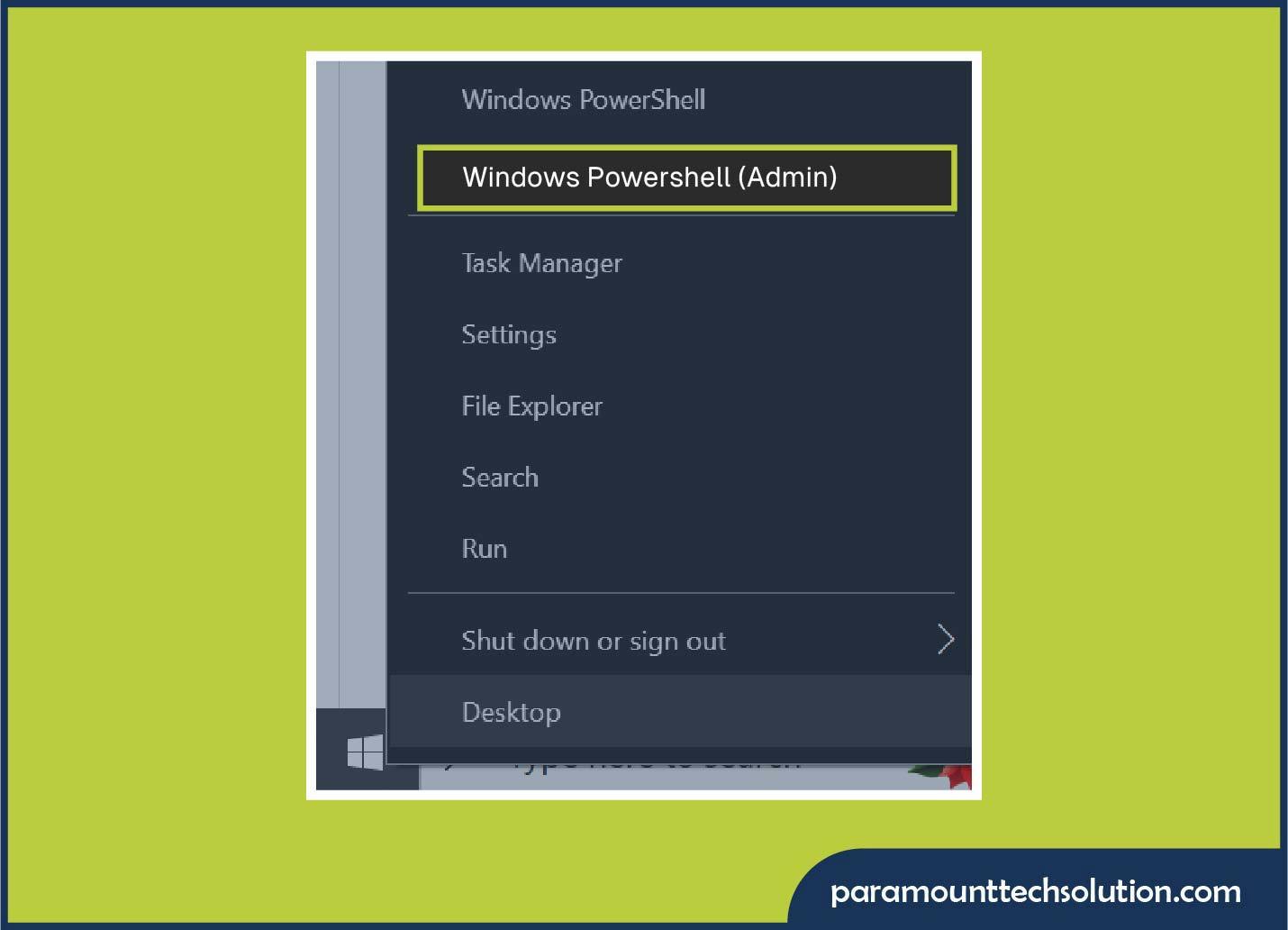
How to Change Administrator on Windows  by Command Prompt

2. Type this command to change the account administrator: add-localGroupMember-Group “Administrator” -Member “ACCOUNT-NAME.” Replace the account name with the user name that you want to change to an administrator. 
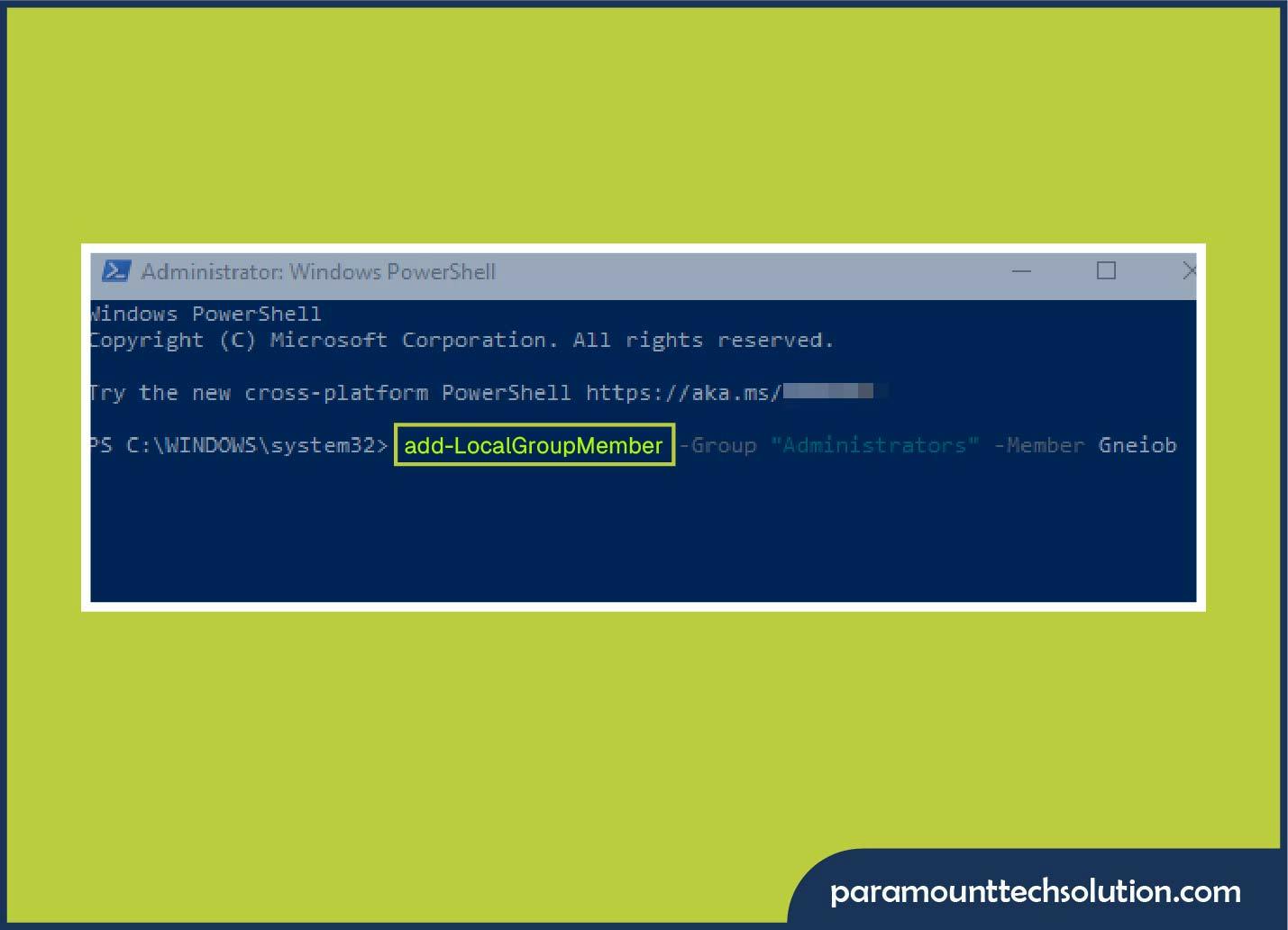
How to Change Administrator on Windows  by powershell

How to Change the Administrator Name on Windows 10

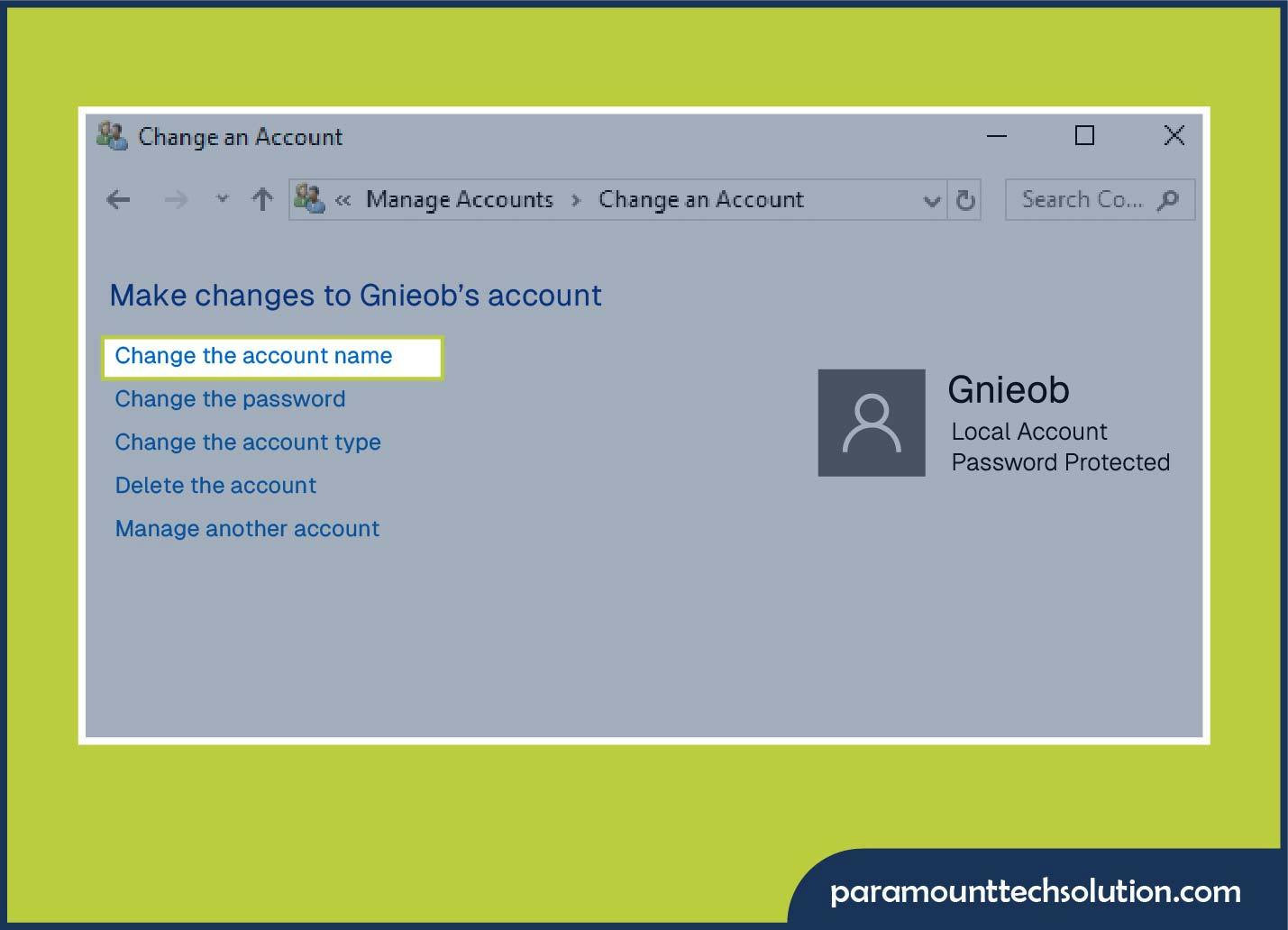
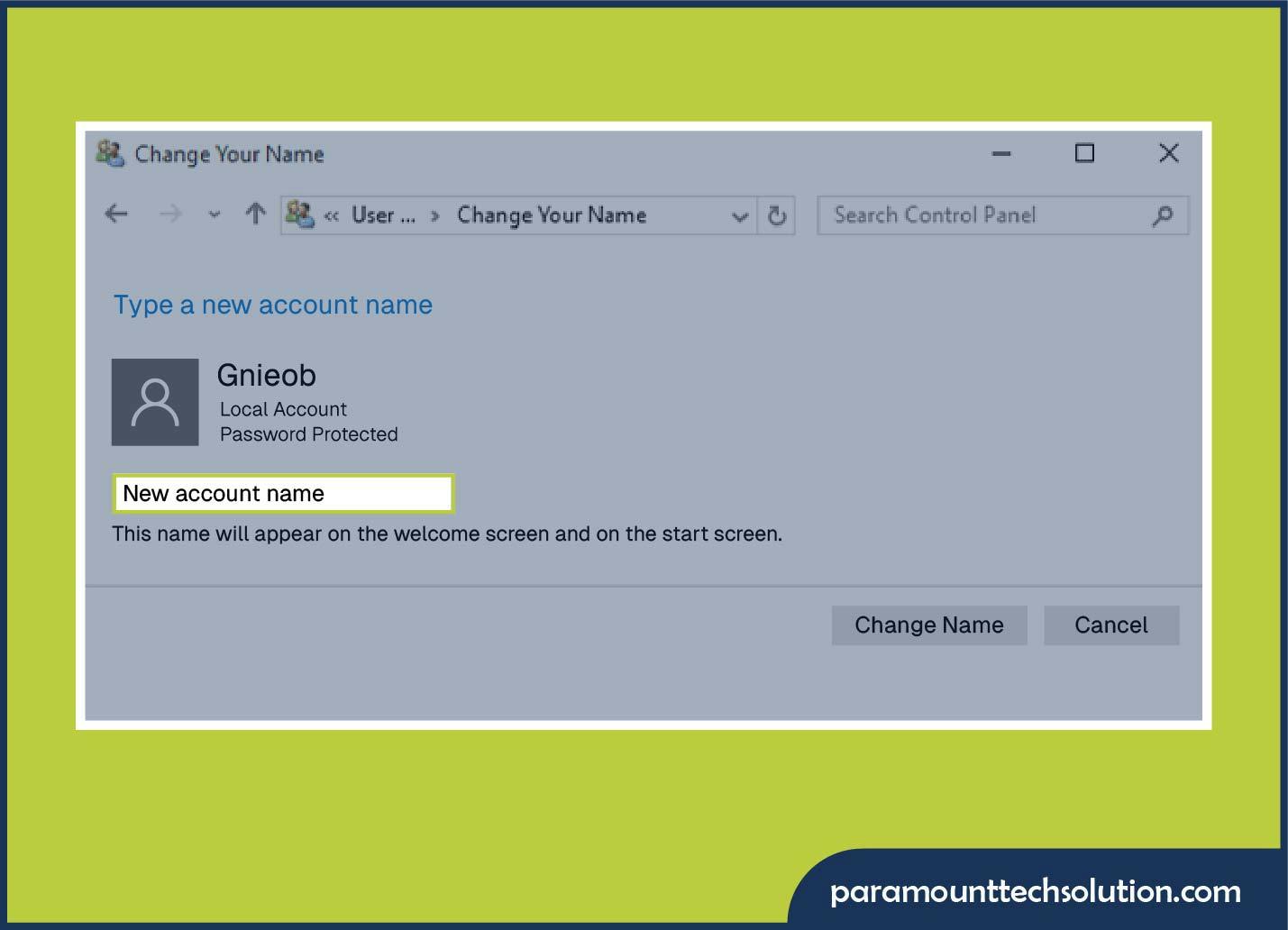
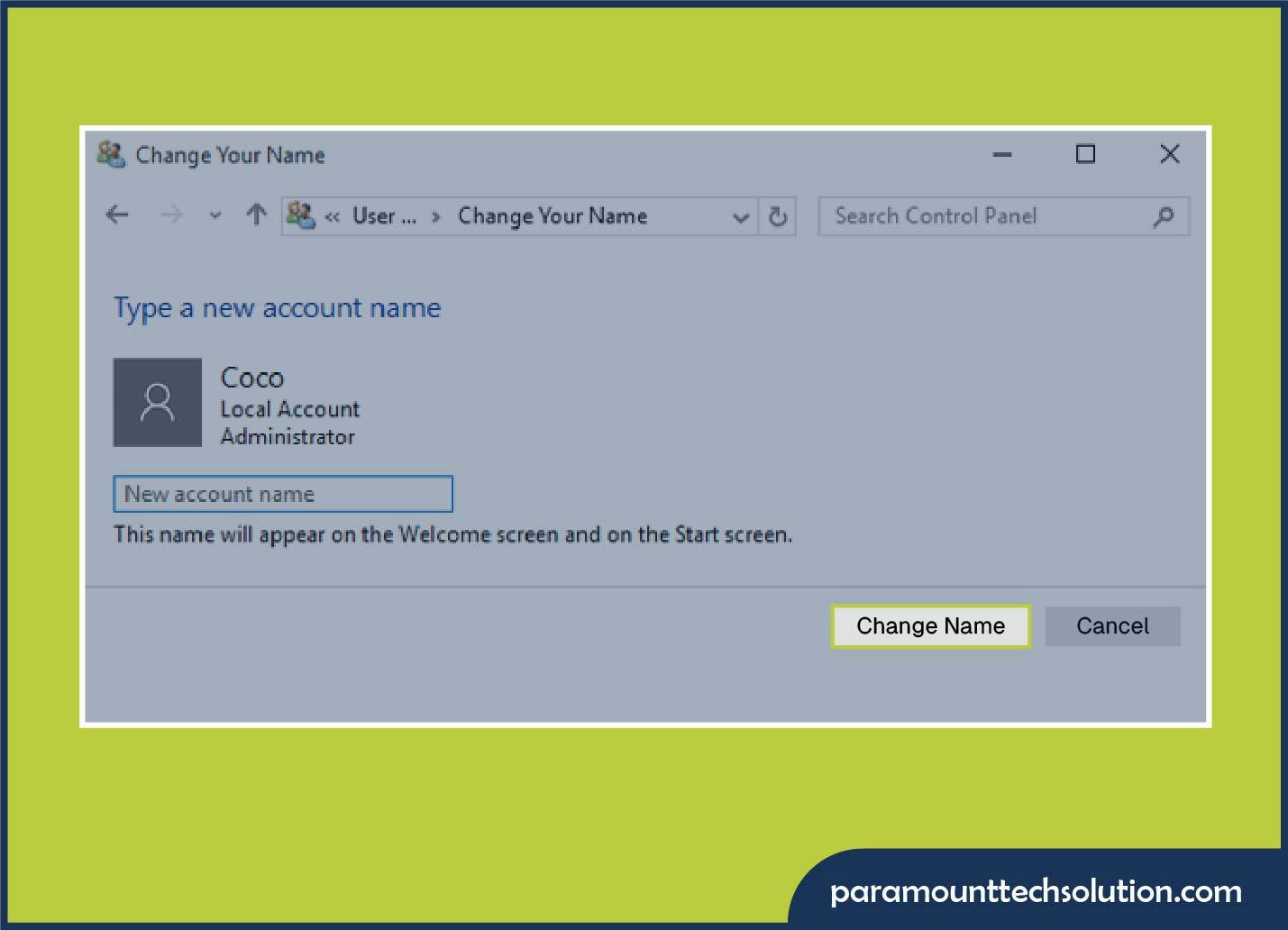
To change the administrator name, you can use the control panel. Click on Start and type Control Panel, select User Accounts, choose Change Your Account Name, type a new administrator name, and click on Change Name to apply.
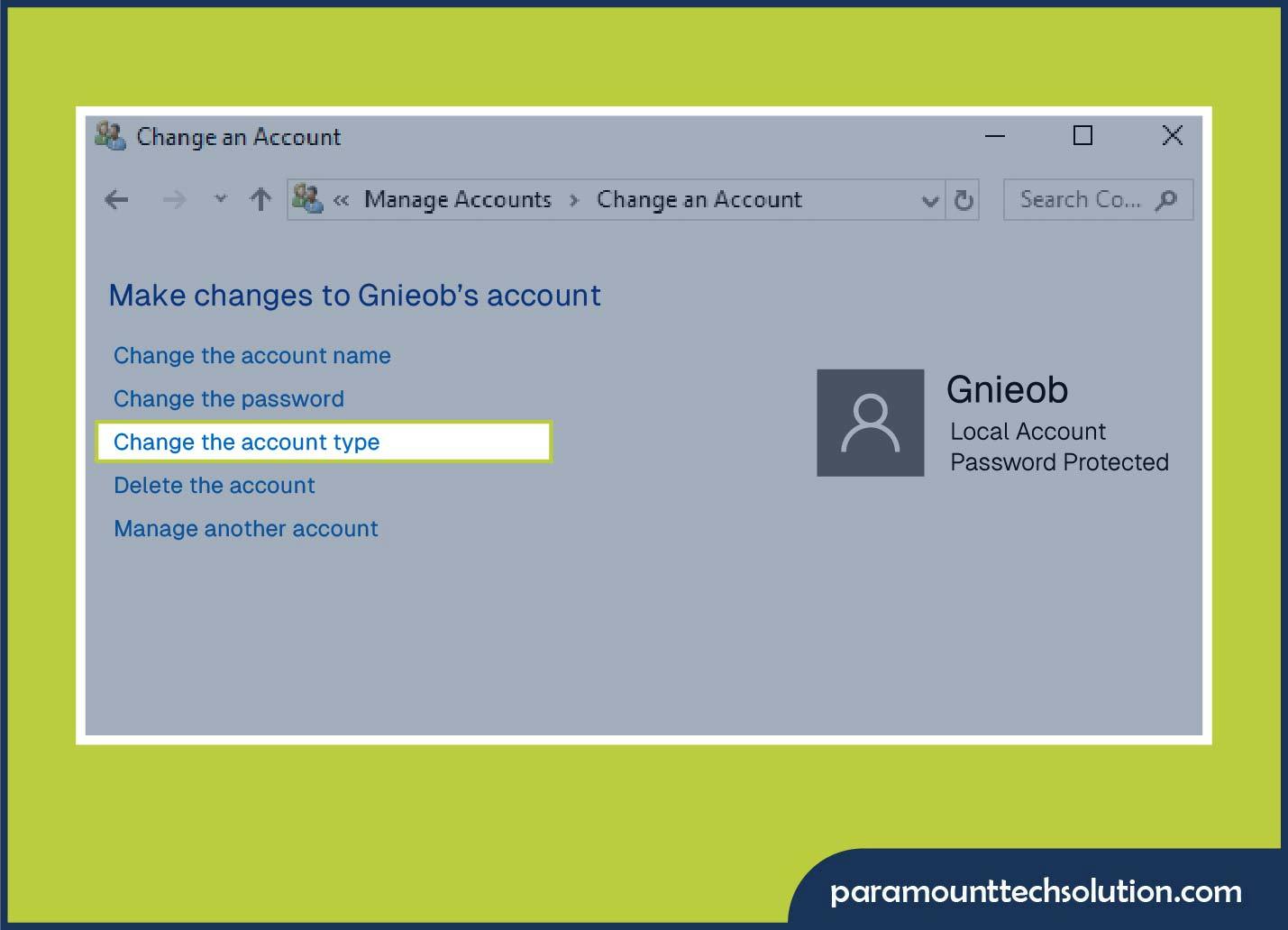
  • Click Start and type Control Panel. 
  • Select users' accounts.
  • Choose to change your account name.
Change Administrator on Windows  by Command Prompt
  • Type a new administrator name.
Changing Administrator on Windows  by Command Prompt
  • Click the Change Name to apply. 

How to Change Administrator Password on Windows 10 

Changing the admin password helps protect your system from unauthorized access. You can change the administrator password through settings or shortcut keys, such as pressing Ctrl+Alt+Delete.

Method 01:Through Settings 

  • Open settings 
  • Go to accounts 
  • Click Sign In in the options 
  • Under password, choose change 
  • Enter the old password, then type the new password and confirm it.

Method 02 Ctrl+Alt+Delete

  • Press Ctrl+Alt+Delete  
  • Select a password change 
  • Enter old and new passwords.

How to Change Administrator Password on Windows 10 

There are many ways to change the administrator password. You can change it from the settings, control panel, or command prompt. Here are the completed details;

Through Settings

  • Click Start Menu and open Settings.
  • Go to the accounts and select the sign-in option.
  • Under password, click Change 
  • Enter your current password 
  • Type your new password.
  • Confirm it and click next, and finish.
  • Your administrator password is now updated.

Change Administrator password using the control panel 

  • Press windows+R
  • Type control and press enter.
  • Click user accounts 
  • Select Manage another account 
  • Choose the administrator account 
  • Click to change the password 
  • Enter the new password , confirm and save it.
  • Your password has been changed.d 

Change Administrator password using Command Prompt (Admin)

  • Right-click on Start 
  • Click on command prompt (Admin)or windows PowerShell (Admin)
  • Type this command ;
  • net user administrator NewPassword 
  • Replace the NewPassword with your password that you want to change.
  • For example, 
  • net user administrator paramount123
  • Press Enter. Your password has been updated. 

How to Change Administrator Account on Windows 10 Without a Password 

If you forget the admin password, then you can change the administrator account on Windows 10 by using Microsoft account recovery and using the command prompt.

Method 01: Using Microsoft Account Recovery 

  • If it's a Microsoft account, recover at account live.com/password/reset. Type this in your browser.
  • Choose option I forgot my password and click next. 
  • Type the email that is used as administrator login on your Windows 10 PC and click Next.
  • Verify your identity. Microsoft will send a code to your recovery email, your phone number, or your authenticator app. Choose the method you still have access to and enter the verification code.
  • After verification, type your new password.
  • Confirm it and click on next.
  • Your Microsoft account password has been successfully reset.

Method 02:Through Command Prompt 

  • Safe Mode with Command Prompt. 
  • Restart PC, hold shift while clicking restart.
  • Go to troubleshoot, advanced options, click on startup settings, and restart. 
  • Press F6 for Safe Mode with the command prompt.
  • Type :net user Administrator newpassword

How to Change Email Address on Windows 10

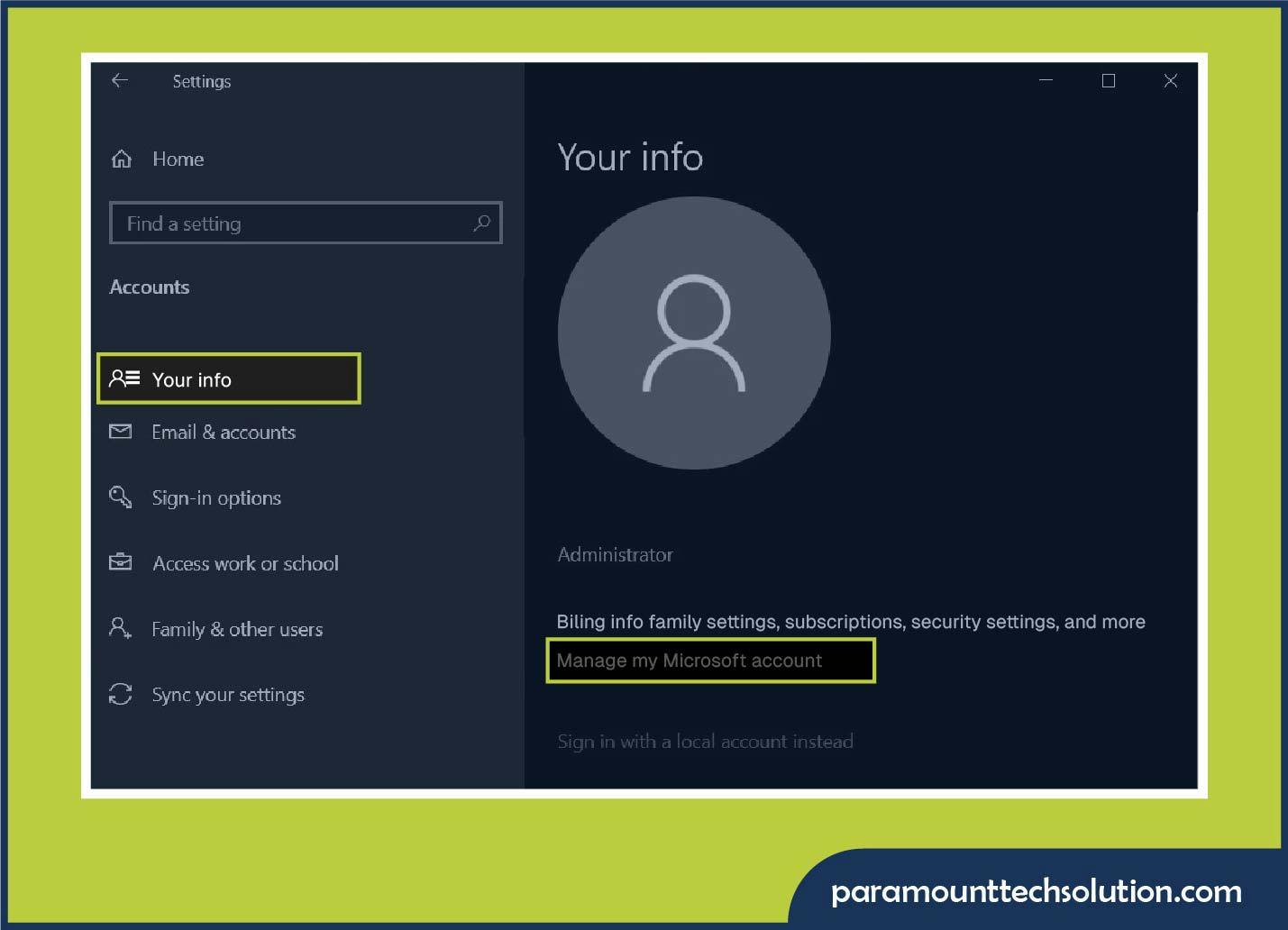
If you have a Microsoft account, then open Settings, click on Accounts, choose your info, and click on Manage my Microsoft account. A browser opens, then go to your info, click on manage how to sign in, and add a new email.

  • For Microsoft accounts 
  • Go to settings, click on accounts, and then tap on your info 
  • Click on Manage my Microsoft account.
  • A browser opens. Then go to your Info, click on manage how to sign in.
  • Add a new primary email. 
  • Remove old email, but it's optional. 

How to Change Administrator Login Name on Windows 10 

Changing the login name depends on the administrator, depending on whether the account is a local account or a Microsoft account. Here we explain both methods.

Method 01:Change Administrator Login Name (local account )

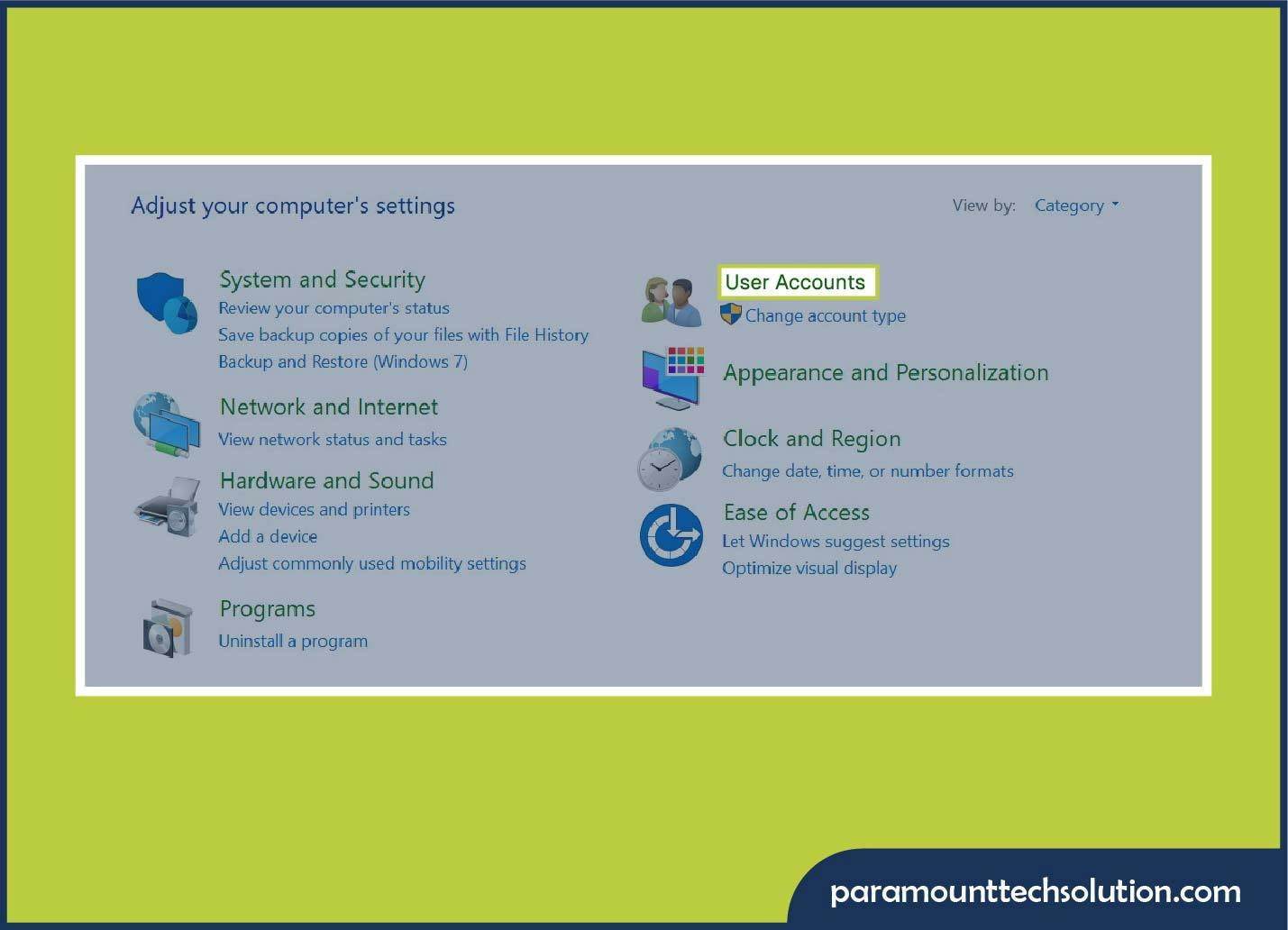
If you want to change the administrator login name, open the control panel, click on user accounts, click on user account again, select change your account name, enter the new login name, and click change name. Here are the easy steps;
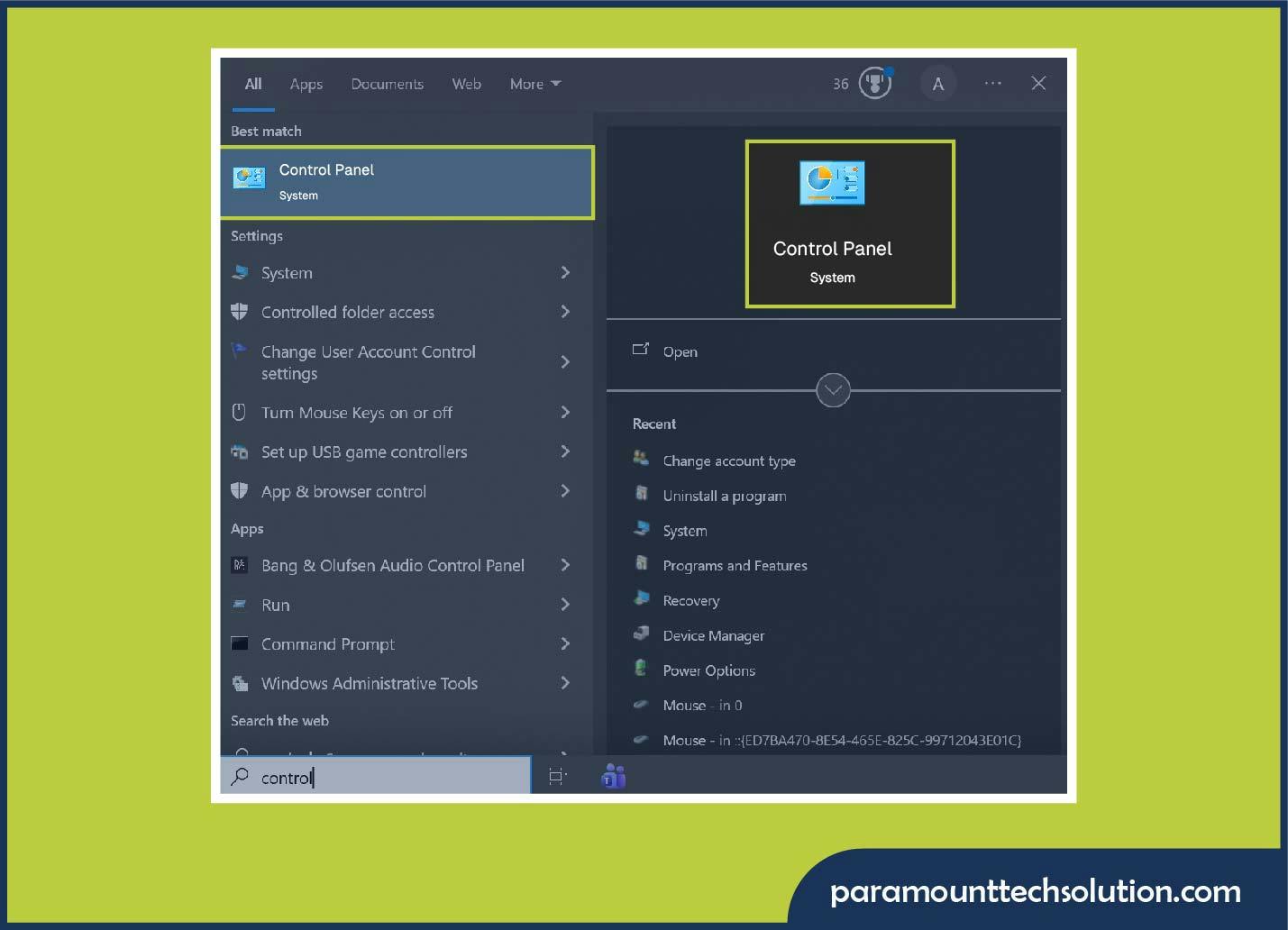
  1. Open a startup menu, search for Control Panel, and click on it.
 How to Change Administrator Login Name on Windows 10
  1. From the options, choose user accounts.
Change Administrator Login Name on Windows 10
  1. Select Change your account name.
Tips to Change Administrator Login Name on Windows 10
  1. Enter the new login name.
 How to Change Administrator Login Name on Windows 10
  1. Click Change Name. Your login screen now shows the new name.

Method 02 Change administrator login name (Microsoft Account)

If your Windows admin login uses an email address, the login name comes from your Microsoft profile. To change it; 
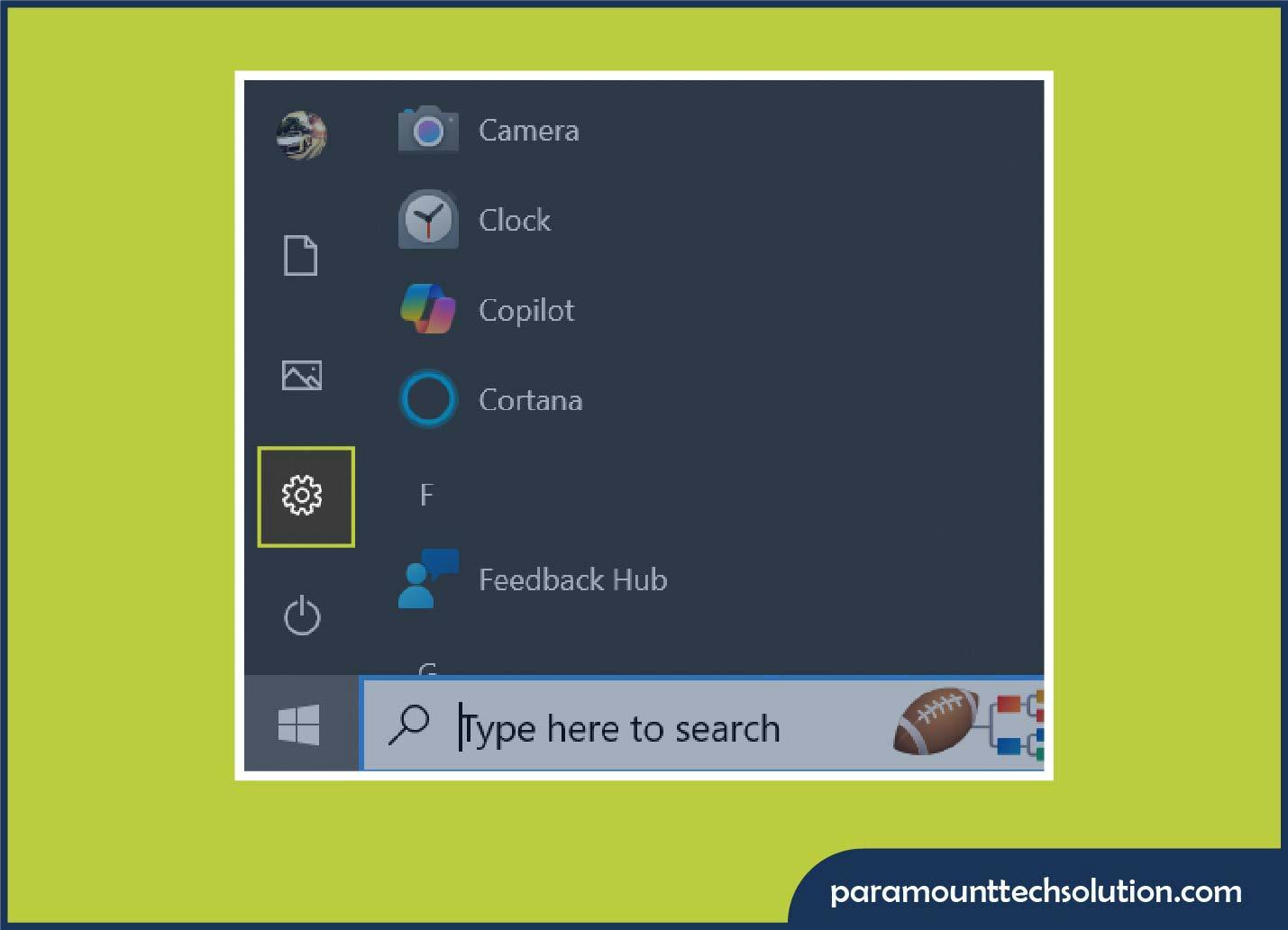
  • Click on the window icon and tap on settings, click on account.
 Easy method to Change Administrator Login Name on Windows 10
  • Click on your info and then click on  Manage my Microsoft Account.
Change Administrator Login Name on Windows 10
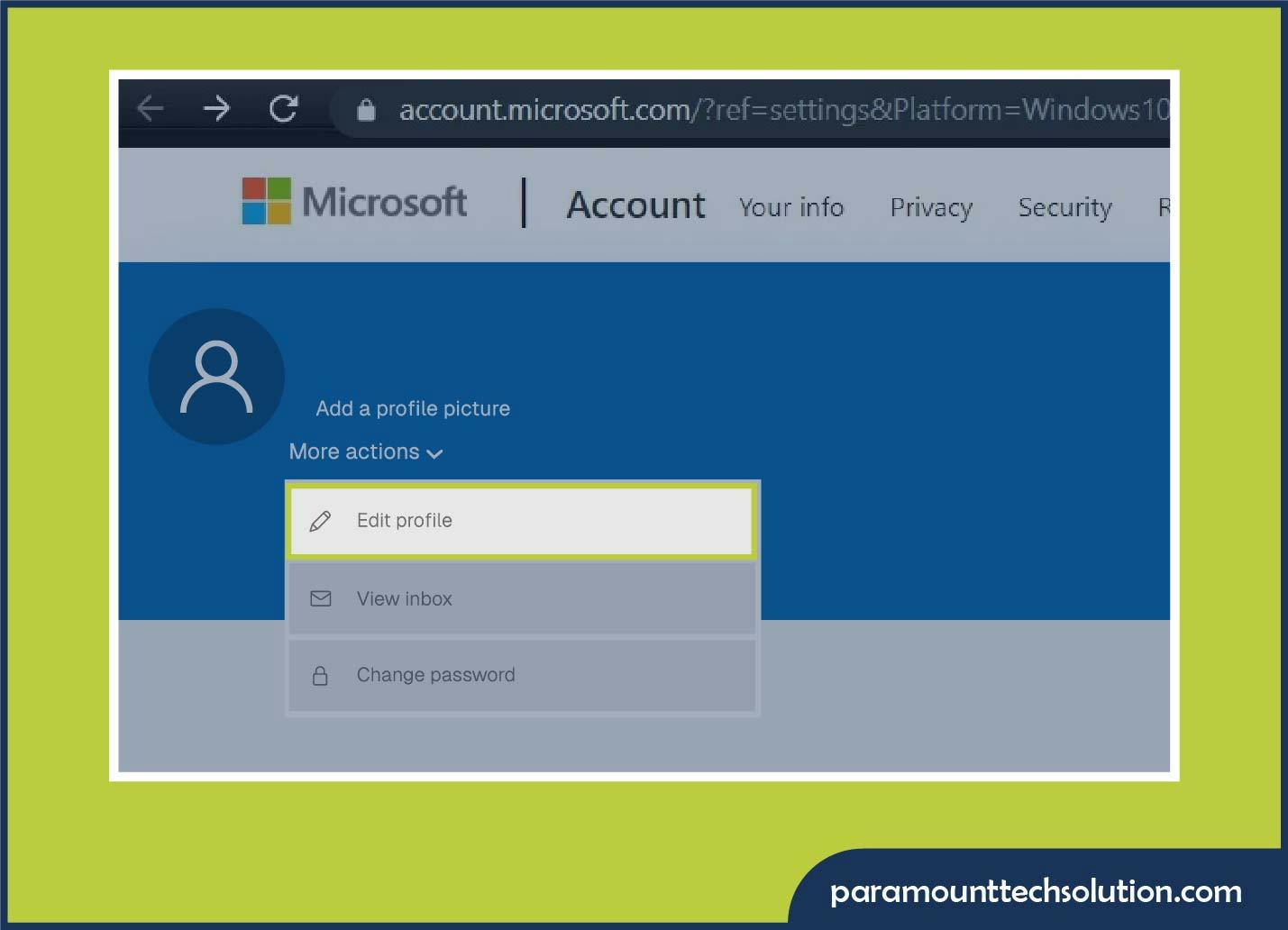
  • A browser will open. Go to your info. Click Edit name. 
Changing Administrator Login Name on Windows 10
  • Type your name first, then your last name, and save changes. 
  • Restart your PC.

How to Change Administrator on Dell, Lenovo, HP Laptop Windows 10 

If you want to change the administrator name on Dell, Lenovo, or HP laptops running Windows 10, then it is the same as changing it on any Windows 10 device. All laptop follows the same steps. Here are details;

Step 01:Open Setting 

Click on the start button and select settings 

Step 02:Go to Account 

Choose an account from the options 

Step 03:Open Family and other users 

This section shows all the user accounts on the laptop.

Step 04:Select the user. 

Now, under the other users, choose the account that you want to make an administrator.

Step 05:Click on Change Account type

Choose Administrator from the drop-down from standard user to Administrator.

Step 06:Click Ok 

The selected user now becomes the administrator of the laptop.

 Conclusions 

An administrator is a person who has full privileges to control the system, and the administrator gives permissions to the local users. You can change the administration in Windows 10 by using settings, the control panel, or the command prompt. All these methods are explained step by step in our blog. Just make sure that you are already logged in with an existing administrator account to make these changes. By managing admin rights properly, you can keep your Pc secure, organized, and easy to use for all users.

FAQs

    Can I change the administrator without a password?

    No, Windows requires an existing admin password to change administrator settings. However, if you forget, you can recover it using Microsoft account Recovery.

    Is there more than one administrator on Windows 10?

    Yes. Windows allows multiple administrator accounts on the same computer.

    How do I remove an administrator account?

    Simply go to the settings, select accounts, click on family and other users, select the account, and choose Remove.


Most Popular Blogs