Critical Process Died Window 11
Paramount Tech Solution

Paramount Tech Solution
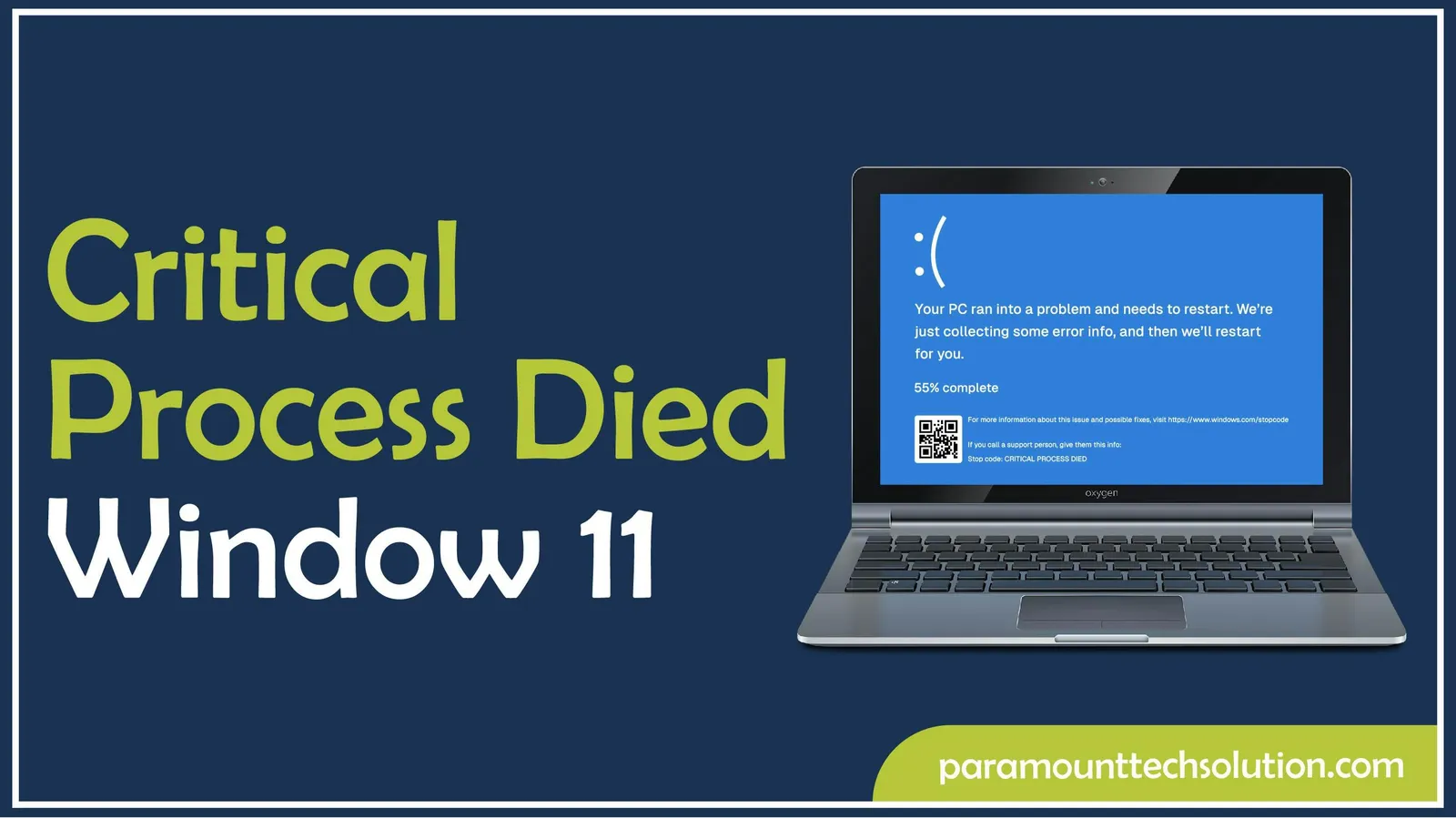
Have you ever faced that when you open your PC and a blue screen appears on it? This condition is called a critical process died error in Windows 11, which is a common Blue Screen of Death problem that appears when essential system processes stop working that causing a system crash to prevent further damage.
This error usually appears due to corrupted system files, Outdated drivers, hardware problems, or failed Windows updates.
In this guide, we will explain what is actual critical processes are in Windows 11, what their causes are, and how to fix them.
In Windows 11 Critical process died is a Blue Screen of Death (BSOD) error that occurs when an essential system process stops working or crashes, so Windows is forced to shut down to prevent further damage. It usually occurs after an update, during startup, or while running heavy software.
In simple words, it means your PC is in trouble and needs to restart. There are some processes that are needed to run it; if even one critical process fails, Windows cannot function properly, which results appearance of a blue screen. It's not like a usual Windows 11 error message. You should have to wait for to process to complete and for the device to restart automatically.
This error usually happens due to the following reasons;
The critical process loop happens when the same error repeats continuously. It means you face:
The stop code critical process died in Windows 11 is a Blue Screen of Death error. It appears when a vital system process that Windows needs to run stops working or crashes. What you experience ;
You can fix the your critical process died error. You should boot into safe mode, run System File Checker, run DISM to repair the Windows image, update or reinstall drivers, check for hardware issues, remove problematic Software or updates, use System Restore, or reset.
Here are some steps that can fix critical process died, or critical process died loop in Windows 11 without losing your data. Here are simple fixes
Step 01: Enter Recovery Mode
Step 02:Boot into Safe Mode
Step 03:Repair System files
Step 04:Update or Reinstall Drivers
Step 05:Check Hardware
Step 06: Remove problematic Apps/updates
Step 07:System Restore or Reset
Reset PC:
On Dell PCs, it can happen during boot, normal use, or under heavy load, like gaming. Causes can be software-related or hardware-related.
Common causes of a Dell PC
Here’s a complete guide specifically for Dell PCs with Windows 11 experiencing a critical process died BSOD.Dell laptops/desktops may have some hardware-specific considerations, but the general fixes are the same as for other PCs.
Step 01: Enter Recovery Mode
Step 02: Run system Repairs
Step 03: Safe Mode -Dell driver fixes
Step 04:Uninstall Recent Updates
Step 05: Reset Windows
Step 06:Dell Diagnostics(optional hardware check)
Critical process died is an error that occurs when an essential process stops working, and the window cannot load properly, which forces the window to shut down to prevent further loss. This usually happens after window updates or outdated drivers, Corrupted system files, hardware problems, or incompatible software. Critical process Died is a serious but fixable Windows error. With proper troubleshooting, most systems can be restored without losing data.
Why do critical processes died happens while gaming?
Gaming puts a heavy load on CPU, GPU, RAM, and drivers. The error usually occurs due to;
Does this error delete my data?
No, the error itself does not delete files. Data loss happens only if you choose Remove everything during reset.
Can bad drivers cause this error?
Yes, Faulty GPU, storage, or chipset drivers are a common reason.
Can Windows updates cause a critical process to died?
A buggy or interrupted update can corrupt system files and cause this error.