White screen on Apps and Website
Paramount Tech Solution

Paramount Tech Solution

Have you ever opened an app or website and instead of content, you only see a white screen? A White screen appears when an app or website fails to load its content properly. It can happen due to software glitches, full cache, unstable internet, compatibility problems, or interference from VPNs or extensions.
This issue can be solved by refreshing or restarting your device, checking your internet connection, clearing your browser cache or cookies, updating your app, turning off your VPNs, or proxy. In this blog, we explore different apps or websites that are facing a white screen issue, and provide a complete solution to get a better screen experience.
Many users experience a white or blank screen when opening YouTube. It usually happens when you want to access something important on your YouTube channel. If you want to fix the issue, then first you have to know the reasons behind this occurrence.
Some of the main reasons are browser glitches, Ad blockers, corrupted cache, incompatibility with your GPU drivers, or Network issues.
Here are the details
There are some quick fixes that can resolve your YouTube white screen on mobile and desktop. Here are the details;
On Mobile
On Desktop
Sometimes, when you open your Discord, instead of loading normally, the whole screen turns white or blank, and nothing appears. This usually happens because of corrupted cache files, internet/vpn problems, outdated apps, or hardware acceleration glitches.
Old builds may stop working properly after updates or server-side changes.
Some fixes can resolve your Discord white screen, whether it is on mobile or on Windows and Mac.
Step 01:Force close the App, close Discord completely, and reopen it.
Step 02: Clear the cache.
On Android, go to the settings, choose Apps, click on Discord, then click on storage. Tap on clear cache. On iPhone, IOS does not allow cache clearing; reinstall instead.
Step 03: Restart your phone
Step 04: Install the latest version from the Play Store or App Store.
Step 05:Reinstall the app.
Step 01:Completely close Discord. Make sure it's not running in the background.
Step 02:Clear the Discord cache. On Windows, open a file and paste this path %AppData%\discord
Delete folders named Cache, code cache, and GPU Cache. Then restart Discord.
-/library/application
support /discord/
Step 03: Disable hardware acceleration
Step 04:Update or reinstall Discord
Uninstall the app, restart your PC, and download the latest version.
Step 05:check the internet and security settings
Try these fixes;
Many Snapchat users face a problem where the app opens but shows a white blank screen, and nothing loads. This issue can happen on Android or iPhone and is usually caused by app glitches, corrupted cache, network problems, outdated software, or device-related issues.

App cache or data corruption: Temporary files may become corrupted and prevent Snapchat from loading properly.
Outdated Snapchat App: Older versions may not be compatible with new updates.
Weak or unstable internet: Snapchat needs a stable connection to load stories, chats, and camera features.
Server-side issues: sometimes Snapchat servers are down or under maintenance.
Device software Bugs: Outdated Android or iOS versions can cause compatibility issues.
Permission problems: If camera, storage, or network permissions are denied, Snapcat may fail to load.
VPN or Proxy Interference: VPNs can block Snapchat’s network connection may cause problems in loading Snapchat properly.
There are some fixes for the Snapchat white screen. You can apply it on Android and iPhone to get a clear screen. Here are the details;
Step 01:force close Snapchat
Step 02:Clear cache
Step 03:Restart your phone
Step 04:Update the Snapchat
Step 05: Check app permissions
Step 06:Reinstall snapchat
Step 01: Close the app completely, swipe up, and close Snapchat
Step 02:Restart the iPhone
Step 03:update snapchat
Step04:Reinstall your Snapchat
A blank or white screen on Instagram usually appears when you open the app and nothing loads, such as no feed, no stories, just a white screen. This can happen on Android or iPhone, and a common reason is app glitches, corrupted cache, network issues, or outdated software.
App Cache or Data Corruption: Temporary files may prevent Instagram from loading properly
Outdated Instagram App: Old versions may not work with recent updates.
Week or Unstable Internet: Instagram needs a strong connection to load content properly. So weak or unstable internet signals may cause issues, and many cause a white screen.
Instagram Server issue: Sometimes the problem is on Instagram’s side
VPN or proxy interference: VPN or proxy reroutes your internet connection to another server, which can block or slow Instagram, sometimes causing a white screen.
Phone software bugs: Outdated Android or IOS versions can cause compatibility issues.
Some fixes can resolve your white screen on Instagram. Here are the details;
Force stop Instagram: To do this, go to the settings, click Apps, choose Instagram, then force stop.
Clear cache: Go to the settings, click on apps, choose Instagram, then click on storage, and clear cache
Restart your phone: Restarting your device usually solves temporary glitches.
Update instagram
Go to the Play Store and update Instagram: Disable VPN or proxy:
Messenger wite screen is a common problem where the Facebook Messenger app or Messenger web version opens but shows a completely blank white screen with no chats, icons, or loading animations.
Main causes of Messenger white screen are corrupted app cache or data, outdated Messenger app, weak or unstable internet connection, Facebook server issue, battery optimization or background restrictions, VPN or proxy interference, etc.
There are some fixes that can resolve your white screen problem on Messenger, such as clearing Messenger cache, updating Messenger, checking your internet connection, turning on VPN or proxy, or reinstalling Messenger. Here are the details;
Clear Messenger Cache:
Update Messenger: Open the Play Store, search Messenger, and install the latest update.
Check internet connection: Switch between wi-fi and mobile data, restart your router, turn airplane mode ON and OFF.
Disable battery optimization.
Turn off VPN apps or proxy: Disable VPN apps and restart your messenger.
Reinstall Messenger: Uninstall Messenger, restart your phone, then reinstall Messenger from the official store.
It can be caused by outdated graphic drivers, corrupted game files, internet connection problems, antivirus or firewall blocking Roblox, compatibility issues, or server outages that trigger the Roblox white screen error.
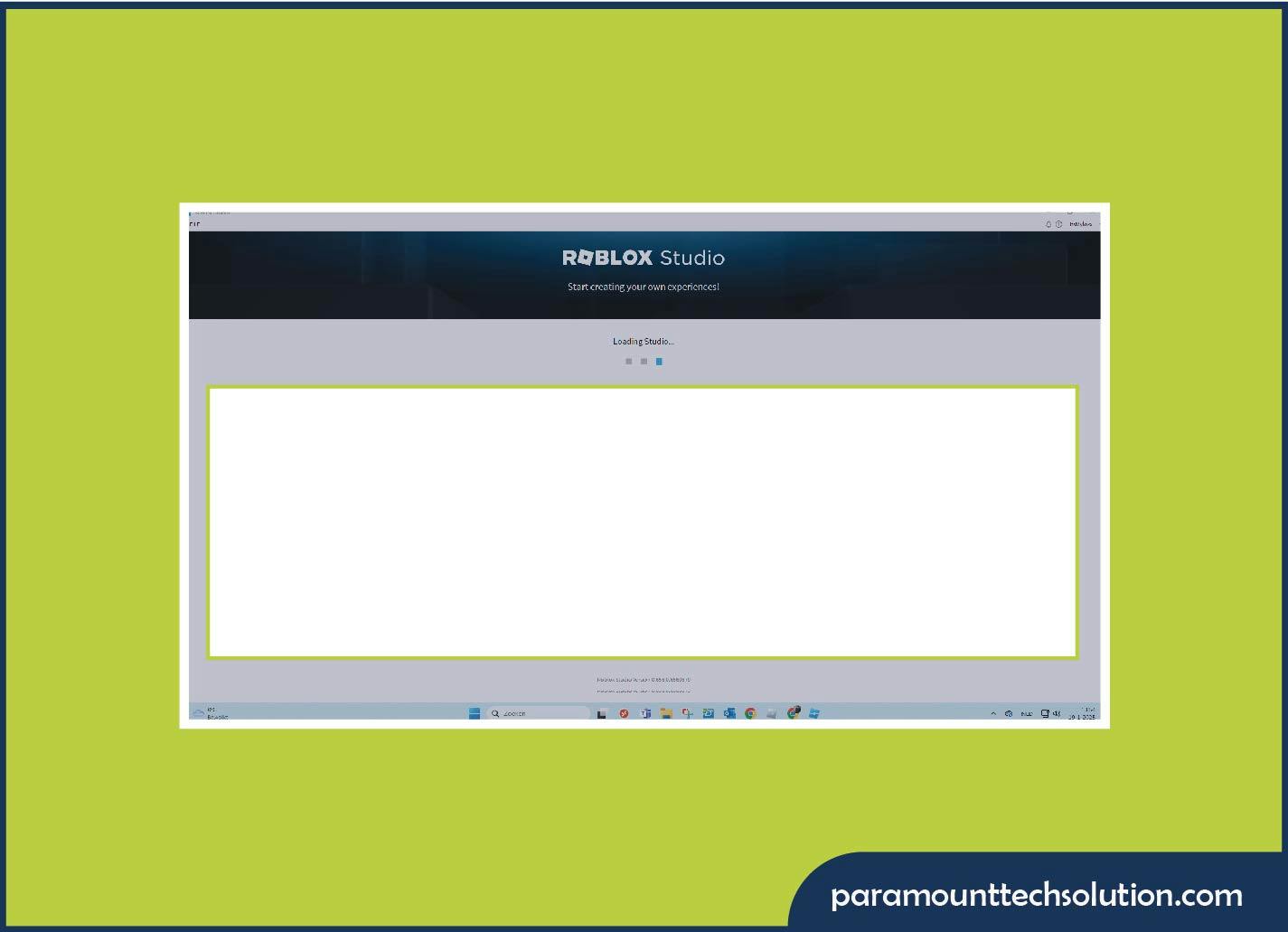
Roblox white screen is a common issue where the Roblox app or Roblox website opens but displays a completely blank white screen. Instead of loading games, the home page, or the login screen. Here are some fixes;
Restart Roblox and your Device: Close Roblox completely and restart your phone or computer.
Update Graphics driver: Open Device Manager. Go to the display adapters, and update your graphics drivers
Reinstall Roblox: Uninstall Roblox, restart the device, and download and install Roblox again from the official site or app.
Clear Browser cache: Open browser settings, clear cache and cookies, and Reload the Roblox website.
Disable VPN or proxy: Turn off any VPN services, and try opening Roblox again.
Check Roblox server status: If the server is down, wait until Roblox resolves the issue.
Lower Graphic settings (if game loads later):
Sim4 is a popular life simulation game, where players create and control virtual people. The white screen issue in Sim4 occurs when the game or apps launch but display a blank whit screen, with no interface, menus, or graphics. Users are unable to play or navigate the game.
Causes:
Some fixes can resolve your white screen issue on the SIM4 game. Here are the details;
Restart and Clear the Cache:
Update the App and device
Disable VPN or proxy
Reinstall the App
Check Compatibility
Check Internet connection
Switch to a stable wi-fi or mobile network if the app requires online resources.
A white screen usually appears due to a full cache, bad codes, outdated software, weak or unstable internet problems, compatibility issues, or server issues that prevent the content from loading. You can solve your white screen on apps and websites with simple troubleshooting fixes. Keeping your software updated, using a stable internet connection, or clearing your cache can help prevent most white screen problems.
How to fix the white screen on apps?
Restart your app or website, clear cache, update the app and device OS, and disable VPN, proxy, or ad blockers. Reinstall the app or check your internet issue.
What is the Moza loading white screen?
It happens when, Moza app, software, or website opens but stays stuck on a blank white screen. It can be fixed by closing or reopening the app, restarting your device, checking the internet issue, clearing the app or browser cache, updating the Moza app, or reinstalling the app.
Why a blank white page in Chrome?
A blank white page in Chrome usually means the website did not load correctly. This can happen due to corrupted browser cache, slow internet, JavaScript errors, or Chrome extensions like ad blockers or VPNs.